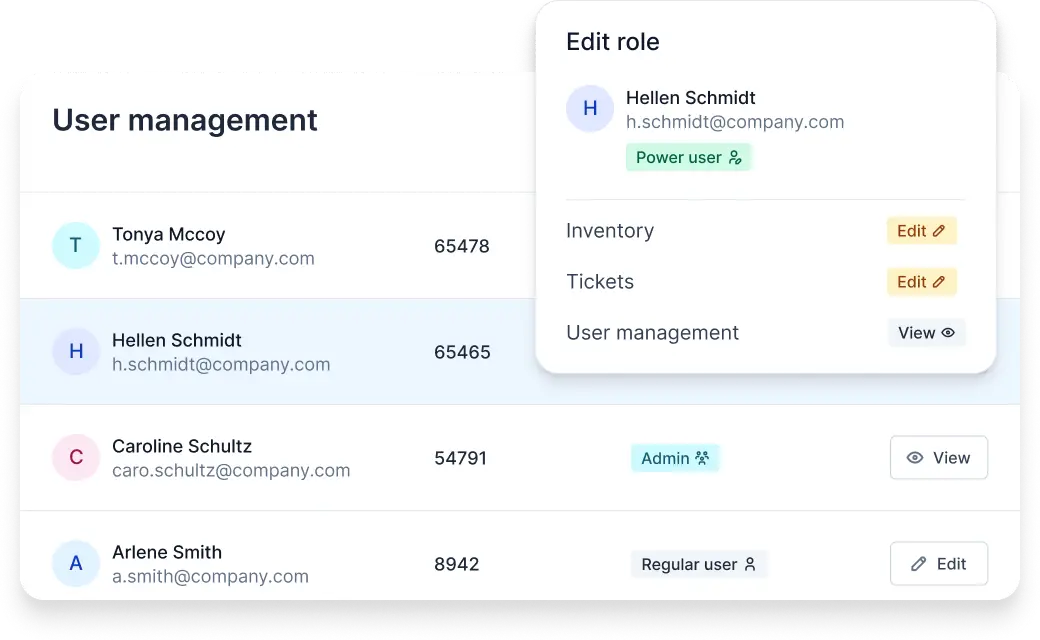
Tasks and required permissions are often unique. In Timly, you can create customized user roles for your employees, making your inventory management efficient, transparent, and GDPR-compliant.
With Timly, adding new users is intuitive and time-saving—you only capture the data that’s truly necessary. For different tasks, you can create custom roles that can automatically be assigned the appropriate permissions.
Assign Roles Freely
Create tailored roles for specific tasks in your organization. This structures and simplifies user management while improving security and efficiency.
Custom Permissions
Set permissions for all Timly modules individually, thereby creating user profiles that are perfectly aligned with your needs.
Data Privacy and Minimal Data Use
Define which locations and work areas a user is authorized for. This keeps user management lean and effective.
Link Employee Profiles
When adding new users, predefined roles appear as selectable options. Employee profiles can also be linked in the same step for even smoother setup.
Timly protects sensitive data with state-of-the-art security measures. User login follows secure password guidelines, with optional two-factor authentication. Highly sensitive personal data in the Personnel Module is accessible only to authorized users, and individual views can be defined.
Inventory Management Permissions
Timly’s inventory management software is a powerful tool. Enable or disable features as needed to tailor it perfectly to your requirements.
Data Privacy for Personnel Records
Explicitly define which employees can access personal data. Fine-grained settings ensure that only the information absolutely necessary is shared.
Separate Ticket Module
Collaborative work requires protection from unauthorized access. Permissions for the Ticket Module can be assigned independently.
Read, Edit, Create, and Delete
Access can be precisely controlled for each module and its features. Multiple permission levels are available to manage what each user can do.
Select User Management in the settings. There, under the Role Management tab, you can view, edit, and create user roles.
The processing of personal data is subject to the General Data Protection Regulation (GDPR). Timly is fully GDPR-compliant. The Personnel Module is especially secure, and custom roles allow you to share only the data that is strictly necessary with authorized users (data minimization).
User types represent employee profiles in the integrated Personnel Module based on their role, such as Technician or Driver. Roles, on the other hand, define permissions within the Timly software—similar to administration settings in an IT network.
No. You can use the convenient CSV import to add multiple users at once. This allows you to convert existing lists and upload them directly into Timly. If any issues arise, Timly’s professional support team is available to assist you.
Permission settings also allow you to create profiles with minimal access—such as for conducting inventory. Each profile can be temporarily deactivated and reactivated later. This way, you maintain full control without needing additional software for temporary staff.
Experience Custom Roles Live. Request Your Demo Now!